How I Built a SuperTrend Alert with AI (No Coding Background Needed)
I used AI to build a SuperTrend indicator alert that pings me when a trend flips. Here's the exact process, the prompts, the Pine Script, and what I'd do differently.
Nagarajan
Engineer
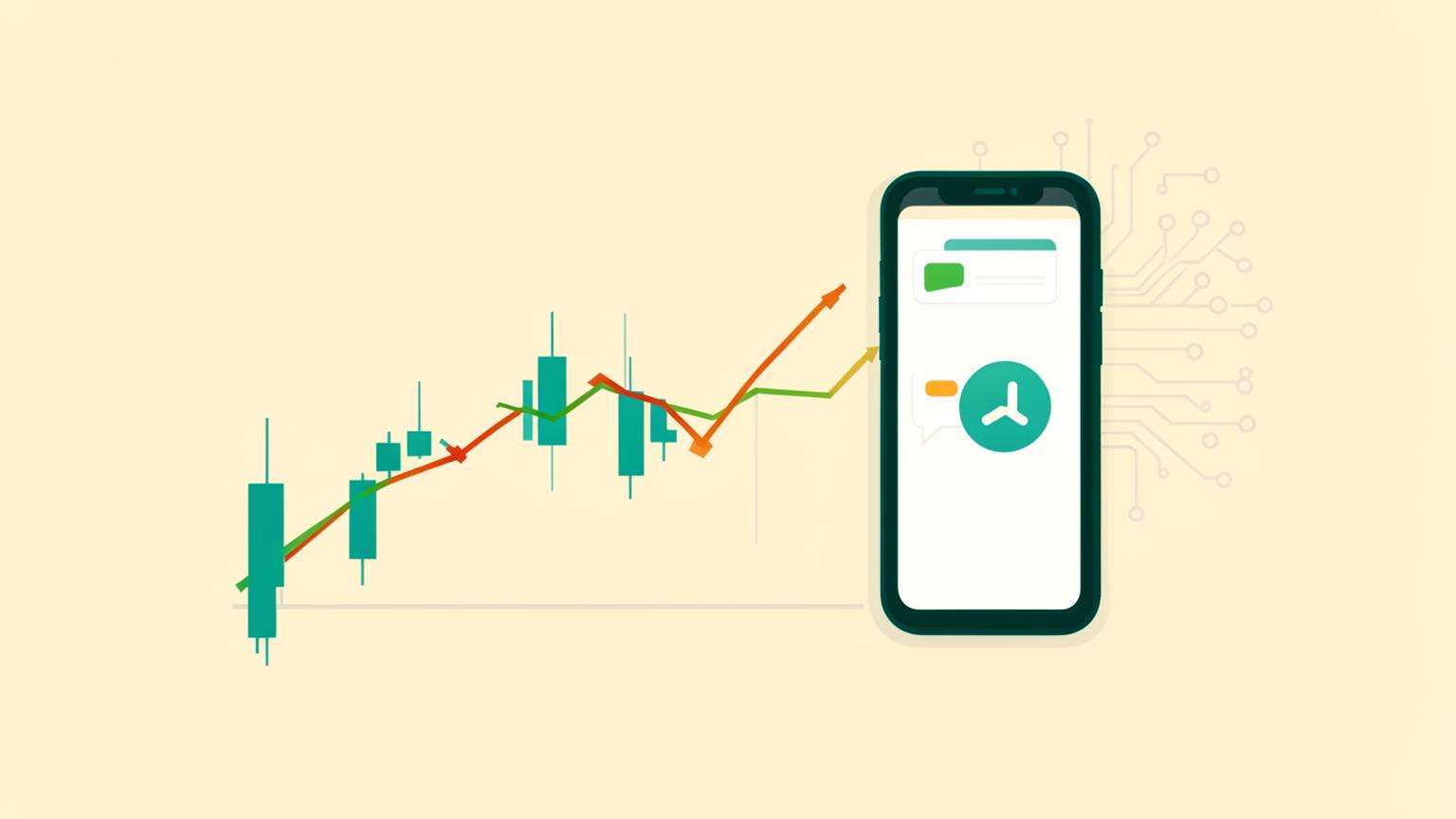
Staring at charts waiting for a trend flip is a terrible use of time. I wanted a simple system: when the SuperTrend indicator flips bullish or bearish on the symbols I watch, I get an alert — no babysitting required.
I'm not a developer. I built the whole thing with AI doing the heavy lifting, and it took one evening. Here's exactly how, including the mistakes.
What SuperTrend actually tells you
SuperTrend is a trend-following indicator built on the Average True Range (ATR). It plots a single line that flips sides when the trend changes:
- Price above the line (usually green): uptrend, buyers in control.
- Price below the line (usually red): downtrend, sellers in control.
- The flip itself: the signal people trade on — a potential trend change.
Two settings control it: the ATR period (how much history it considers) and the multiplier (how wide the band is). Defaults are 10 and 3.0 — a good starting point.
The problem: SuperTrend gives great signals, but only if you're watching when the flip happens. That's what the alert solves.
Step 1: Get AI to write the Pine Script
TradingView's built-in SuperTrend can fire alerts, but I wanted a cleaner version with a true/false flip signal and custom messages. So I opened an AI chat and used this prompt:
"Write a TradingView Pine Script v6 indicator for SuperTrend with ATR period 10 and multiplier 3.0. Plot the trend line colored green in uptrends and red in downtrends. Add alertcondition() calls that fire exactly once when the trend flips bullish and once when it flips bearish. Add input fields so I can change the period and multiplier without editing code."
The first version it produced had a bug: the flip condition triggered on every bar of the new trend instead of just the first. I replied:
"The bullish alert fires on every green bar. Fix it so it only fires on the bar where the trend changes, using ta.change or a comparison with the previous bar's trend direction."
Second version was correct. That iteration loop — describe, test, paste the problem back — is the whole skill. You don't need to understand every line; you need to describe the behavior you want and verify it on the chart.
Here's the working script:
//@version=6
indicator("SuperTrend Flip Alerts", overlay=true)

atrPeriod = input.int(10, "ATR Period")
multiplier = input.float(3.0, "Multiplier", step=0.1)

[supertrend, direction] = ta.supertrend(multiplier, atrPeriod)

isUp = direction < 0
bullishFlip = isUp and not isUp[1]
bearishFlip = not isUp and isUp[1]

plot(isUp ? supertrend : na, "Up Trend", color=color.new(color.green, 0), style=plot.style_linebr)
plot(not isUp ? supertrend : na, "Down Trend", color=color.new(color.red, 0), style=plot.style_linebr)

alertcondition(bullishFlip, "Bullish Flip", "SuperTrend flipped BULLISH on {{ticker}} ({{interval}})")
alertcondition(bearishFlip, "Bearish Flip", "SuperTrend flipped BEARISH on {{ticker}} ({{interval}})")
The {{ticker}} and {{interval}} placeholders get replaced by TradingView with the actual symbol and timeframe in the alert message.
Step 2: Add it to your chart
- Open any chart on TradingView.
- Click Pine Editor at the bottom, delete the template, paste the script.
- Click Add to chart.
You should see the green/red line hugging the price. Zoom out and check a few historical flips — the line should switch sides exactly where the trend visibly changed.
Step 3: Create the alert
- Click the alarm clock icon (Alert) on the chart's toolbar.
- Under Condition, select your indicator name, then Bullish Flip (or Bearish Flip — make two alerts if you want both directions).
- Set Trigger to Once Per Bar Close. This is important — it stops the alert from firing mid-bar on a flip that reverses before close.
- Pick your notification method: app push, email, or webhook.
Done. You now have a robot watching the chart for you.
Step 4 (optional): Route alerts anywhere with webhooks
The paid TradingView plans let you send alerts to a webhook URL. That opens up everything: Telegram messages, a Google Sheet log, even auto-trading bots.
I asked AI: "Write a simple webhook receiver that takes a TradingView alert POST and forwards the message to a Telegram chat." It produced a small server function in one shot. This is exactly the kind of glue code AI is great at — you describe the pipe, it writes the plumbing.
What I'd do differently
- Test on a higher timeframe first. 15-minute charts flip constantly and you'll get alert fatigue. The 4-hour or daily chart gives fewer, more meaningful flips.
- Backtest before trusting it. SuperTrend loses money in sideways, choppy markets. It's a trend tool — it shines when price actually trends.
- One alert per symbol, not ten. I initially set alerts on eight symbols and spent a week jumping at my phone. Narrow it to two or three markets you actually understand.
The bigger lesson
The point isn't the indicator — it's the workflow. Describe the outcome to AI, test the output, paste problems back, iterate. That loop works for trading scripts, spreadsheets, small tools, and half the side hustles on this site.
If you want more ideas like this, check out our AI side hustle idea generator or read How I'd Start an AI Side Hustle with $0.
Nothing here is financial advice. Alerts tell you what the market did; they don't tell you what to do about it.
Get the next guide free
One actionable AI earning idea in your inbox each week.
Related reads
 App Development
React Native in 2026: When It's the Right Choice (and When It Isn't)
A practical guide to React Native app development in 2026 — the new architecture, Expo, real performance limits, costs, and how to ship your first app fast.
 App Development
Native App Development: When Swift and Kotlin Beat Cross-Platform
Native iOS and Android development costs more — here's exactly when it pays off, what Swift, SwiftUI, Kotlin and Compose give you, and how to decide.
 App Development
Flutter App Development in 2026: Honest Pros, Cons and Costs
What Flutter is really good at in 2026 — Impeller rendering, Dart, one codebase for mobile, web and desktop — plus the trade-offs nobody mentions.